Image

Follow these step-by-step instructions to clear your browser's cache and cookies. This can help resolve loading issues, login problems, and display errors.
Cache stores temporary copies of web pages, images, and files to make websites load faster on repeat visits.
Cookies are small files that websites use to remember your preferences, login status, and browsing activity.
Clearing them can help fix issues with:
Select your browser below for step-by-step instructions.
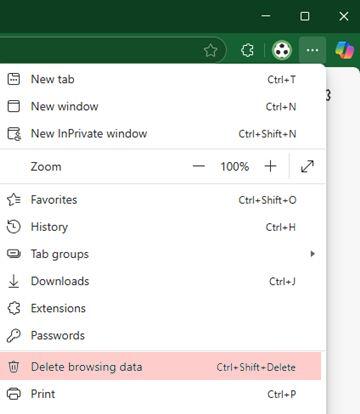
1. Click on the three dots in the top right corner of the browser and select "Delete browsing data". You may also use the keyboard shortcut CTRL + SHIFT + DELETE.
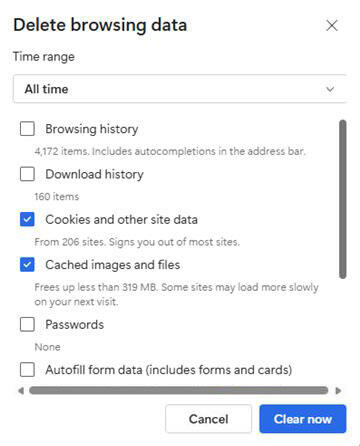
2. Set the time range to All time
3. Select Cookies and other site data and Cached images.
4. Click Clear Now.
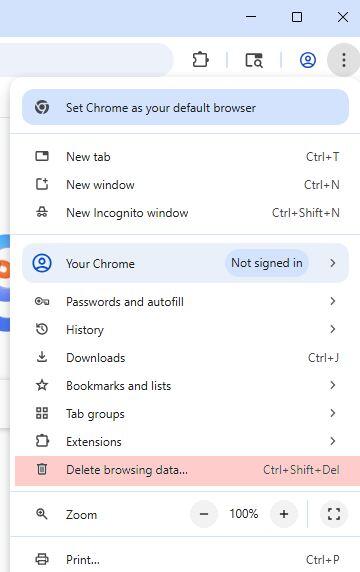
1. Open Chrome and select the More options icon (three dots) in the top-right corner.
2. Select Delete browsing data...
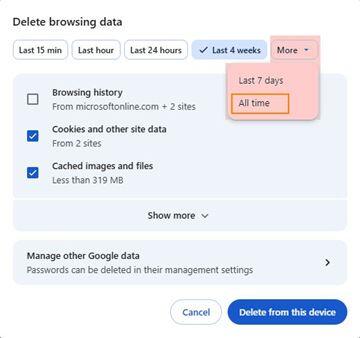
3. Select More and Set the time range to All time, then ensure Cookies and other site data and Cached images and files are selected. Click Delete from this Device.
4. On Windows devices, fully exit Chrome and launch it again. On macOS, open the Chrome menu in the menu bar and choose Quit to apply the changes.