Image

The Center for Teaching & Learning hosts D2L® Brightspace® as our Learning Management System (LMS). Users access the LMS using their CSU user credentials and the Single Sign-On feature associated with that account.
You can only access D2L Brightspace if:
If you do not have access to your CSU email account, contact the IT HelpDesk for assistance accessing your account.
Check your Student Self-Service to make sure you have a current registration.
If you receive an authorization or any other error with a D2L Brightspace log-in attempt, you can contact lmsadmins@centralstate.edu for support.
Use the list below to identify the correct contact or support service to address your concern.
Contact your course instructor if you can access your course in D2L but think something is wrong with the content, such as missing course content, the inability to access course content you believe should be there, or inaccurate content or dates.
Step 1: Identify your instructor.
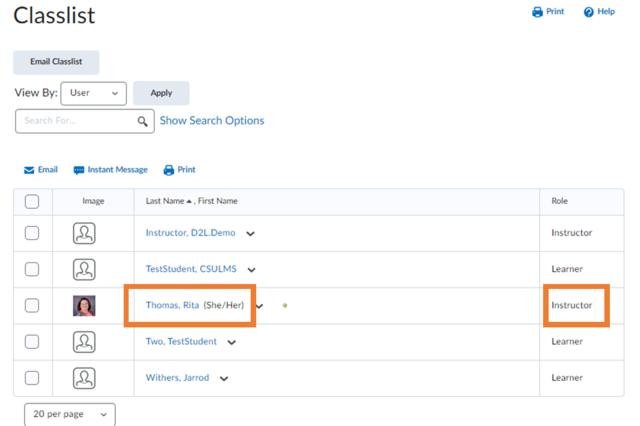
To verify your instructor, go to the course in D2L Brightspace and navigate to the Classlist on the navbar.
Step 2: Open D2L Brightspace email tool from the Classlist
From the Classlist, locate the person who is identified as the instructor or facilitator and click their name to open the D2L Brightspace email tool.
Step 3: Email your instructor.
Compose your message and hit the send button on the D2L Brightspace email window.
Email replies from your instructor will only come to your CSU email account. They will not show up in D2L Brightspace, as the tool only allows you to send emails.
If your course instructor does not respond within 72 hours to your email, reach out to the department chair or dean in charge of the course. If you are unsure whom to contact for a specific course, you may email lmsadmins@centralstate.edu for verification of the department that owns the course.
Search the CSU Faculty, Staff, and Administration Directory or visit the College webpage to contact the chair or dean.
D2L Brightspace uses single sign-on, the same set of credentials you use to access your Central State email. If you can access your email, you should be able to get into D2L Brightspace if you registered for a current or future term.
Step 1: Check your enrollment status in Self-Service.
Step 2: Contact support.
OR
All Central State platforms (O365, D2L Brightspace, Self-Service, etc.) are single sign-on and use the same set of credentials. To update your credentials and gain access to D2L Brightspace, review the following steps:
Step 1: Reset your credentials.
OR
Step 2: Log in to your CSU email or D2L Brightspace with your updated credentials.
Step 3: Contact support.
OR
The Center for Teaching & Learning does not provide password support. Only the IT Help Desk can provide user credential support.
If you are missing a class or if you have the wrong class in D2L Brightspace, follow these steps:
Step 1: Check your enrollment status in Self-Service.
Step 2: Contact support.
OR
For all textbook issues, please contact Rita R. Thomas, LMS Administrator.
For all other issues related to the D2L Brightspace learning management system, please contact the Learning Management System Administrator Team at lmsadmins@centralstate.edu.
Please provide your 9-digit student ID number and identify the type of device (computer or mobile) and browser you are using.
Be sure to provide as much detail about your issue as possible, including but not limited to:
Online degree-seeking students are eligible to access the Digital Marauder ID card. Invitations to access digital IDs are sent at the start of each term after the drop/add date.
Download the Digital Marauder ID card factsheet to learn more about the card.
Email lmsadmins@centralstate.edu with questions.
The Center for Teaching & Learning team only manages the D2L Brightspace learning management system. We cannot support or help you access other Central State systems.
Please contact the University IT department at 937-376-6000 to get technical support for all other CSU systems, including:

All Central State students can complete the D2L Brightspace Student Training inside of D2L Brightspace. This is a self-enrollment, self-paced online course that introduces you to the basics of navigating D2L Brightspace and will help ensure your success as an online student. After you successfully complete the D2L Brightspace Student Training course, you will earn the D2L Brightspace Student Training certification issued by the CSU Center for Teaching & Learning.
How to get started
Step 1: Log into D2L Brightspace, and enroll in D2L Brightspace Student Training from the Discover link on the nav bar (search for "Student Training").
Step 2: Successfully complete the course.
Step 3: Download your award certificate and add it to your D2L Brightspace profile.
D2L® and Brightspace® are registered trademarks of D2L Corporation.